
Sales, reports, and analytics
Available in: 🌐 Web · 🖥️ Desktop
The Dashboard gives a quick view of the business. To create a workbook with exact figures, open the store and go to Reports → Sales.
Analyse a period on the Dashboard
Section titled “Analyse a period on the Dashboard”Open a store and use the Dashboard period selector to switch between Today, Yesterday, Week, Month, or Custom. For Custom, choose the start and end dates. Totals and charts use the store’s configured time zone.
Export a period
Section titled “Export a period”- Enter the store you want to analyse and open its sales report.
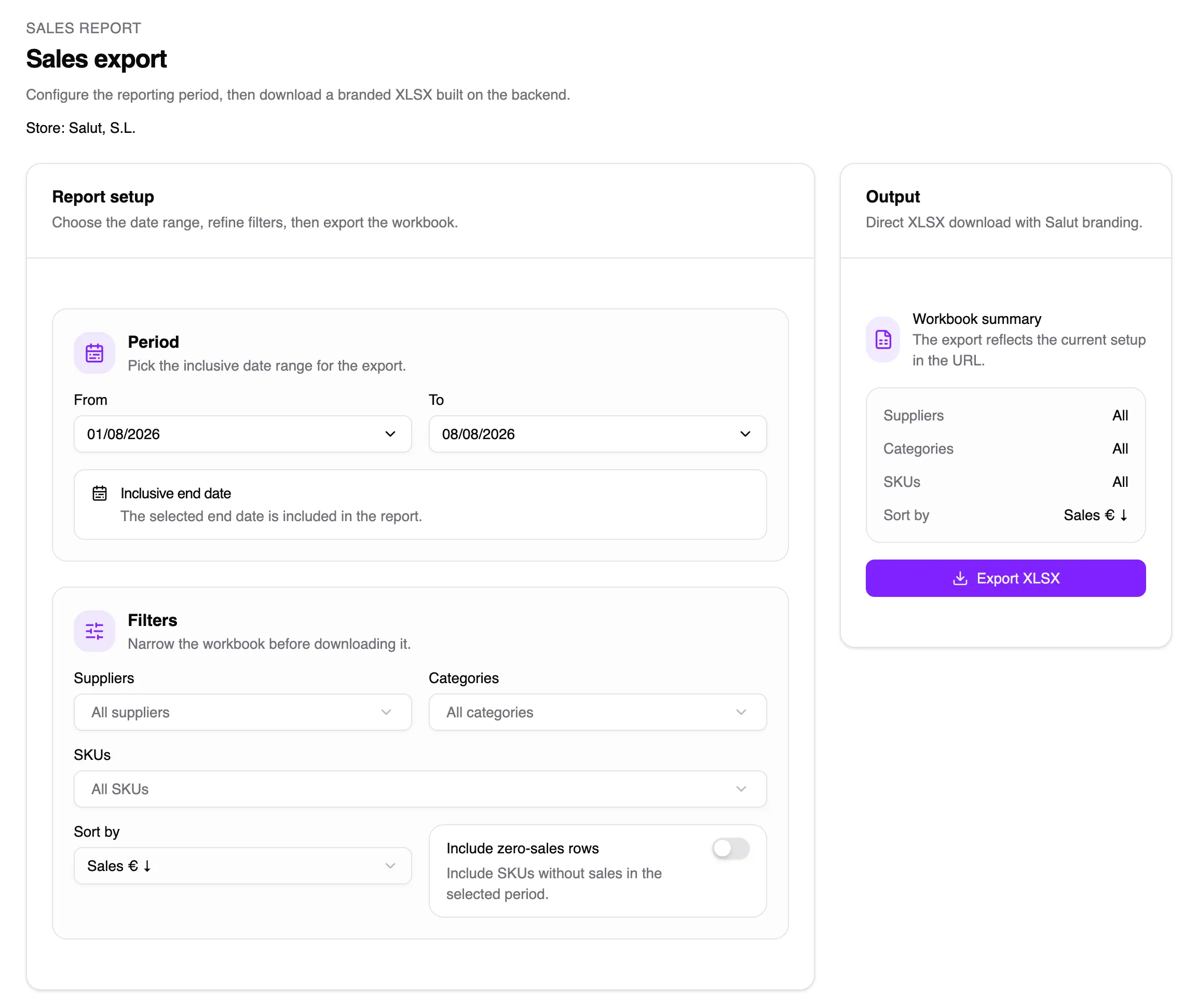
- Select the From and To dates. The end date is included.
- If needed, filter by suppliers, categories, or SKUs.
- Choose the sort order and whether to include SKUs with no sales.
- Review the summary and choose Export XLSX.
Filters are reflected in the URL and change the workbook contents, not saved data. A sale keeps the name, unit, price, and tax applied when it was paid, even if its SKU changes later.
Reconcile a sale
Section titled “Reconcile a sale”Open the downloaded XLSX and compare its totals with the period’s operations. Remember that Salut ERP rounds each line before adding them. If a new Desktop sale is not present yet, check its connection and export again after synchronisation.
Z report
Section titled “Z report”If you use the Z report from Desktop, its breakdown follows the option chosen in Settings → Receipts. Print it when closing operations according to your store’s process.
If figures do not match, see Troubleshooting.